






If you’ve ever glanced at your GPU usage mid-flight and seen it sitting at 60% while your CPU is pinned, you already seen how MSFS 2024 uses your system’s resources. The sim is CPU-limited, and that leaves a lot of GPU performance sitting idle. The usual instinct is to lower graphics settings to recover frame rate, but as IslandSimPilot points out in his latest video, that doesn’t actually fix anything. You’re just making the sim look worse without addressing the real bottleneck.
His solution is a combination of two NVIDIA technologies: DLDSR (Deep Learning Dynamic Super Resolution) and DLSS. The two work in opposite directions, which is exactly what makes the pairing interesting. DLDSR upscales the image beyond your monitor’s native resolution, and DLSS then downscales it back down using AI, recovering the performance cost while retaining much of the clarity gained from the higher render resolution. The result, at least in his testing on a 1440p monitor running at a 4K virtual resolution, is that GPU utilisation climbs above 90%, frame times actually improve, and the image is noticeably sharper than native TAA, with no additional CPU load.
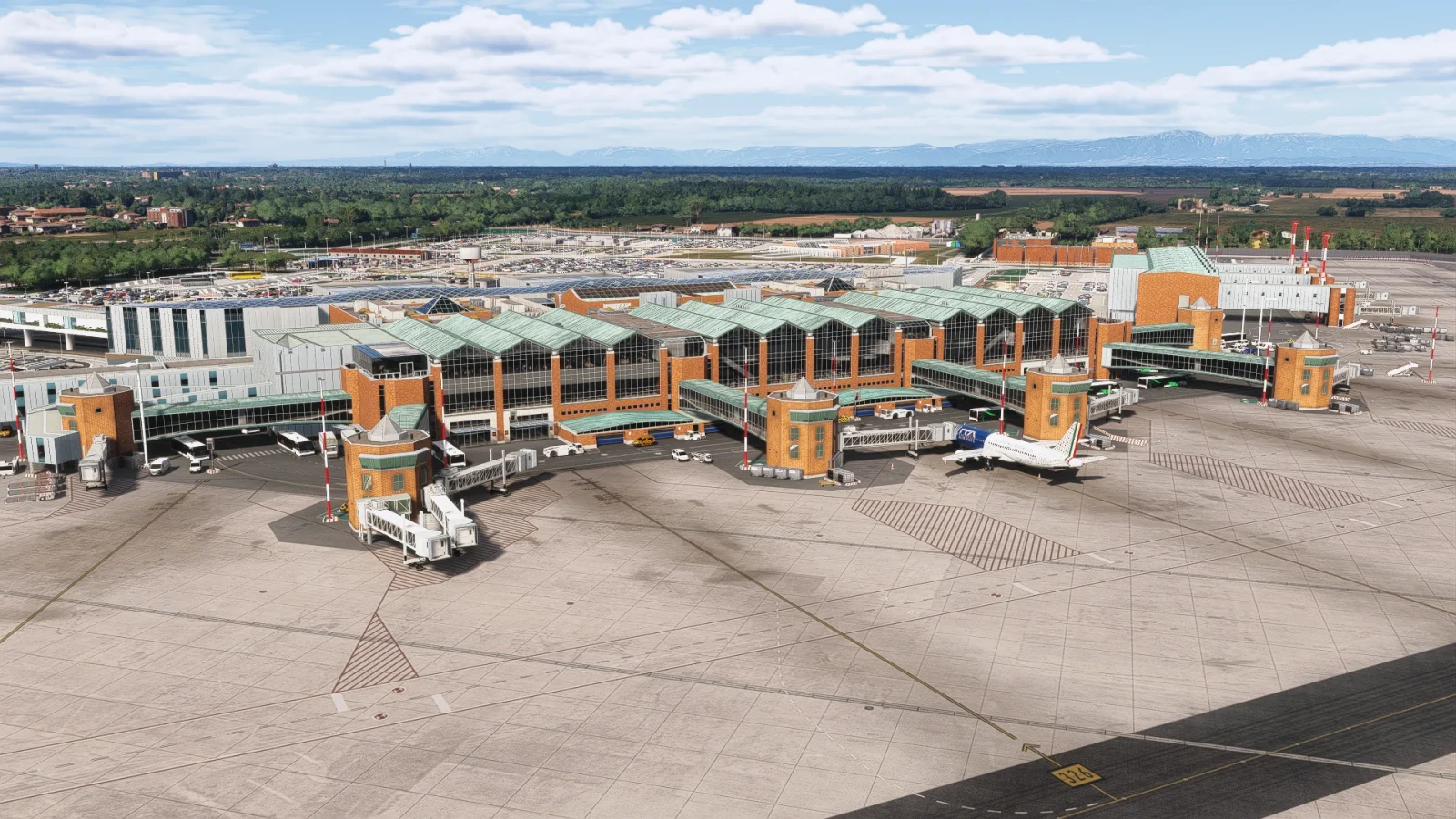
The comparison in the video is worth watching in full. He uses Miami International as a reference point, and the difference in terminal building detail, distant skyline clarity, and even ground-level baggage handling equipment is quite visible between native TAA, DLSS alone, and the full DLDSR plus DLSS combination.
Setting it up
The setup runs through either the NVIDIA App or the NVIDIA Control Panel, both of which expose the same DSR Factors settings. Mike recommends enabling both the 1.78x and 2.25x DL scaling options, which on a 1440p monitor gives you 1920p and 2160p (4K) as selectable resolutions in-sim. For DSR Smoothness, which controls sharpness, the default of 60 is his starting recommendation, with 30 as an alternative if the image looks over-sharpened.
Inside the sim, you set your fullscreen resolution to whichever DLDSR option you’ve enabled, then set DLSS to Quality mode. If you run into performance headroom issues, he suggests two steps in order: drop from the 2.25x to the 1.78x scaling factor first, then if needed drop DLSS from Quality to Performance. He notes that with DLSS 4.5, the Performance preset in MSFS 2024 is close enough to Quality that the trade-off is hard to notice in practice.
We’ve covered the DLSS side of this picture in some depth already, including our piece on DLSS 4.5 and what it means for RTX 50 owners, and for anyone who wants to start from the ground up this graphics settings guide is still a solid foundation. This technique sits on top of all of that as a next-level optimisation, and it’s a way to actually use the GPU headroom that the sim’s CPU bottleneck tends to leave on the table.